
How to Download the Caregiver App
Download, sign in and get ready for work.
A simple guide for Android, iPhone and approved caregiver access.
Choose your device below, follow the store instructions and open the MyCG Caregiver App using the approved credentials connected to your caregiver account.

Already approved as a caregiver? Keep your sign-in details nearby before you begin.
Secure caregiver access
Choose your device
Start with the store already on your phone.
The Caregiver App experience begins in the appropriate app store. The steps are slightly different for Android and iPhone, so use the guide that matches your device.
FOR ANDROID
Download from Google Play
Use these steps on an Android phone or tablet connected to the Google account you normally use.
Before you start
Make sure your device is connected to the internet and you have enough storage.
1.Open Google Play
Find and open the Google Play Store app on your Android device.
2.Search for the app
Enter “MyCG Caregiver App” in the search bar.
3.Confirm the correct app
Look for the MyCG logo and Caregiver branding before continuing.
4.Tap Install
Wait while Google Play downloads the app to your device.
5.Open and sign in
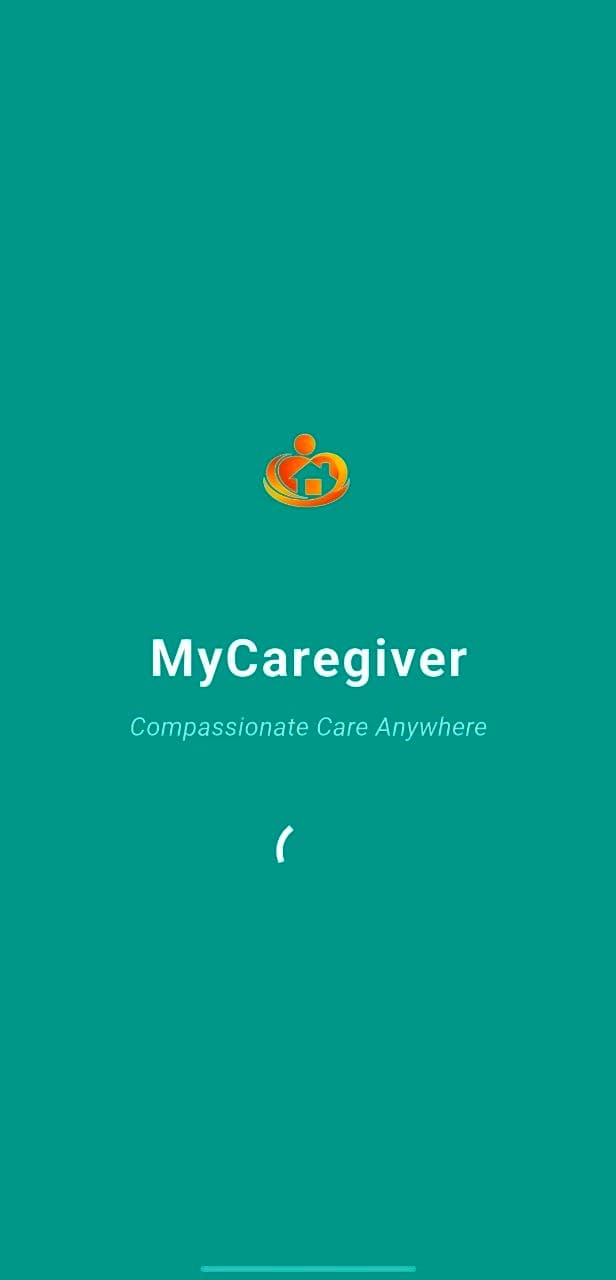
Use your approved caregiver credentials to access your account.
1.Open the App Store
Find and open the blue App Store icon on your iPhone or iPad.
2.Use the Search tab
Search for “MyCG Caregiver App.”
3.Select the correct result
Confirm the MyCG logo and Caregiver branding before installing.
4.Tap Get
Approve the download using Face ID, Touch ID or your Apple account.
5.Open and sign in
Use the approved credentials connected to your caregiver account.
FOR IPHONE & IPAD
Download from the App Store
Use these steps on an iPhone or iPad signed in with the Apple account you normally use.
Download confirmation
Your device may ask for Face ID, Touch ID or your Apple account password.
After installation
Complete your caregiver setup.
Downloading the app is only the first step. Your approved account still needs to be checked and prepared.
01
Open the app
Launch MyCG Caregiver after installation is complete.
02
Sign in securely
Enter the credentials connected to your approved caregiver account.
03
Complete Orientation
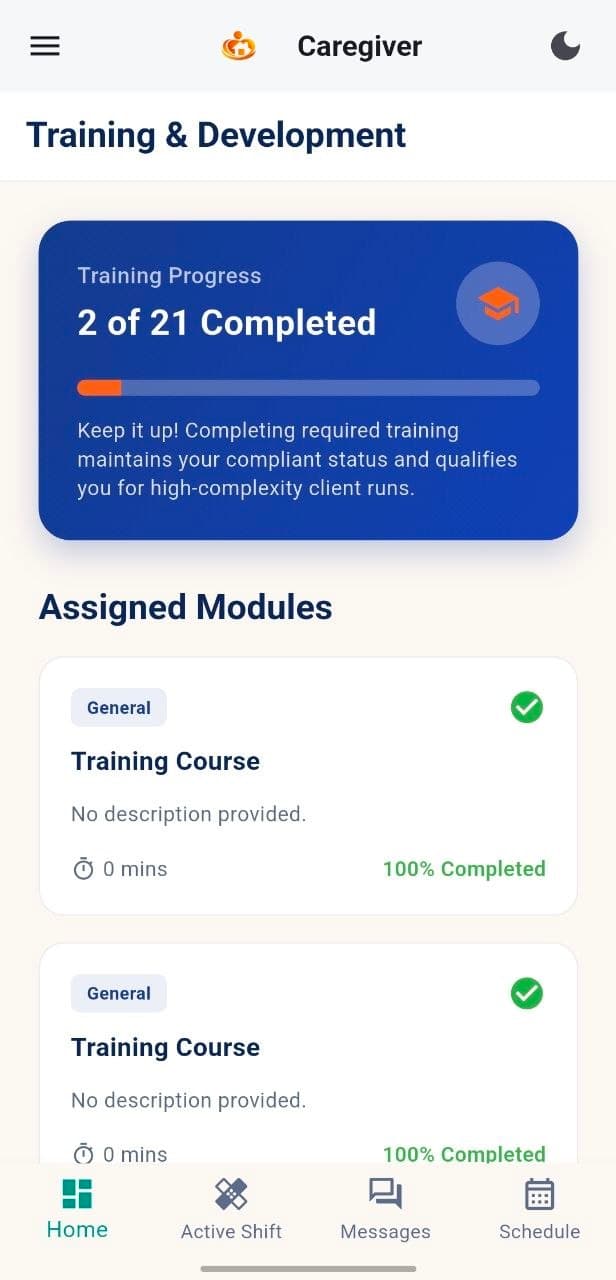
Review profile, emergency contact, documents, training and other tasks.
04
Review your dashboard
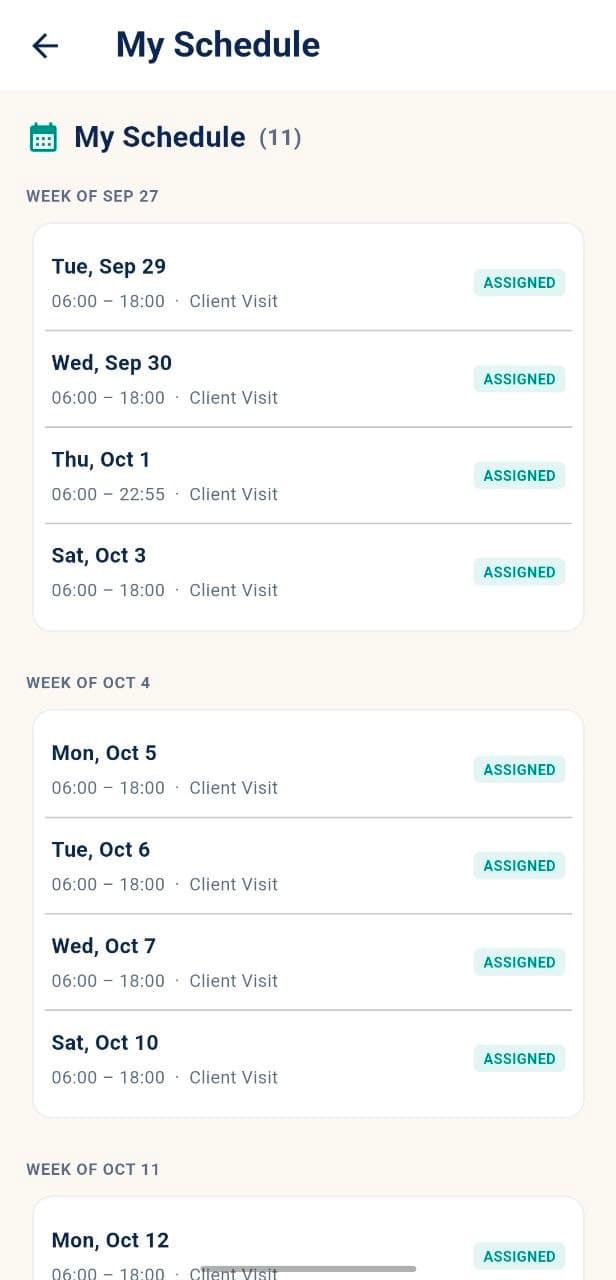
Check the next shift, schedule, messages and readiness status.
Orientation & readiness
Know when your account is ready for work.
Orientation helps you confirm the information and tasks connected to caregiver readiness before you rely on the app for assigned work.
Profile information reviewed
Emergency contact added
Required documents checked
Assigned training visible
Dashboard and Next Shift available
Support route available
Approved caregiver access
Your caregiver account comes first.
The app is intended for approved MyCG caregivers. Downloading it does not create a caregiver account or automatically provide access to assignments.
Receive approved credentials
Use the account information provided through the MyCG onboarding process.
Complete your caregiver profile
Review profile, documents, training and Orientation requirements.
Sign in to the Caregiver App
Approved assignments and tools appear according to your account.
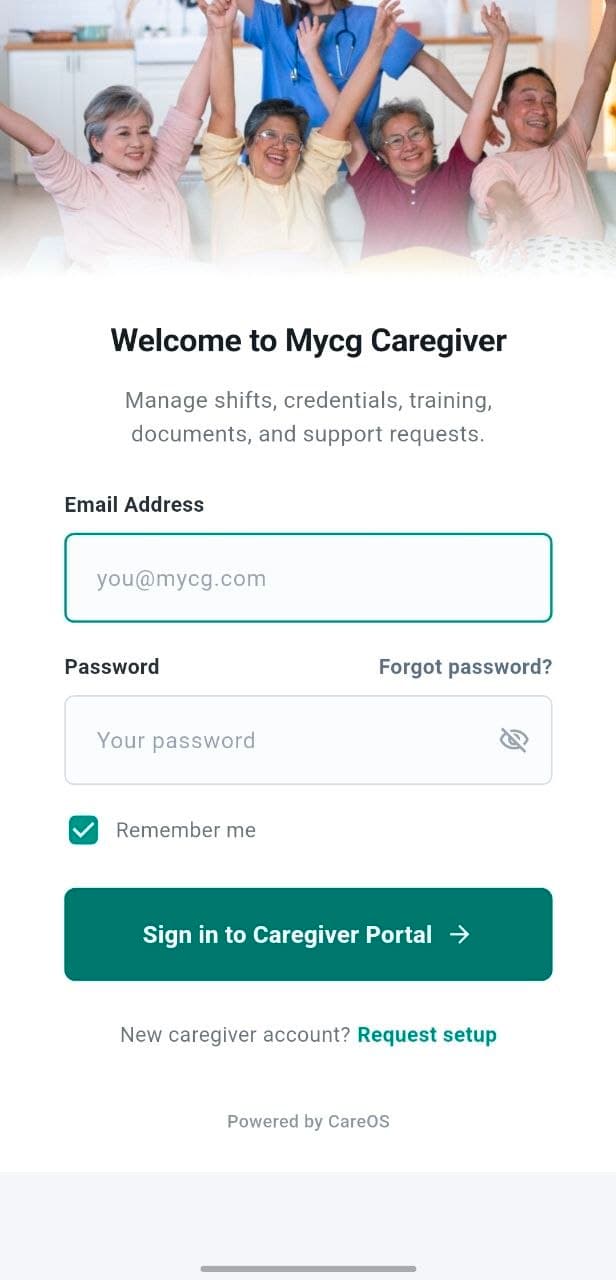
Secure caregiver account access
Need help?
If you cannot download or sign in, MyCG Support can help.
Keep the email address or phone number connected to your caregiver account available when requesting help.