How to Download the Family App
Download, sign in and stay connected.
A simple guide for Android, iPhone and secure browser access.
Choose your device below, follow the store instructions and open the MyCG Family App using the access details connected to your family account.

Already received a family invitation? Keep the email or invite code nearby before you begin.
Choose your device
Start with the store already on your phone.
The Family App experience begins in the appropriate app store. The steps are slightly different for Android and iPhone, so use the guide that matches your device.
FOR ANDROID
Download from Google Play
Use these steps on an Android phone or tablet connected to the Google account you normally use for app downloads.
Before you start
Make sure you have an internet connection and are signed in to Google on the device.
1.Open Google Play
Find and open the Google Play Store app on your Android device.
2.Search for the app
Tap the search bar and enter “MyCG Family App.”
3.Confirm the correct app
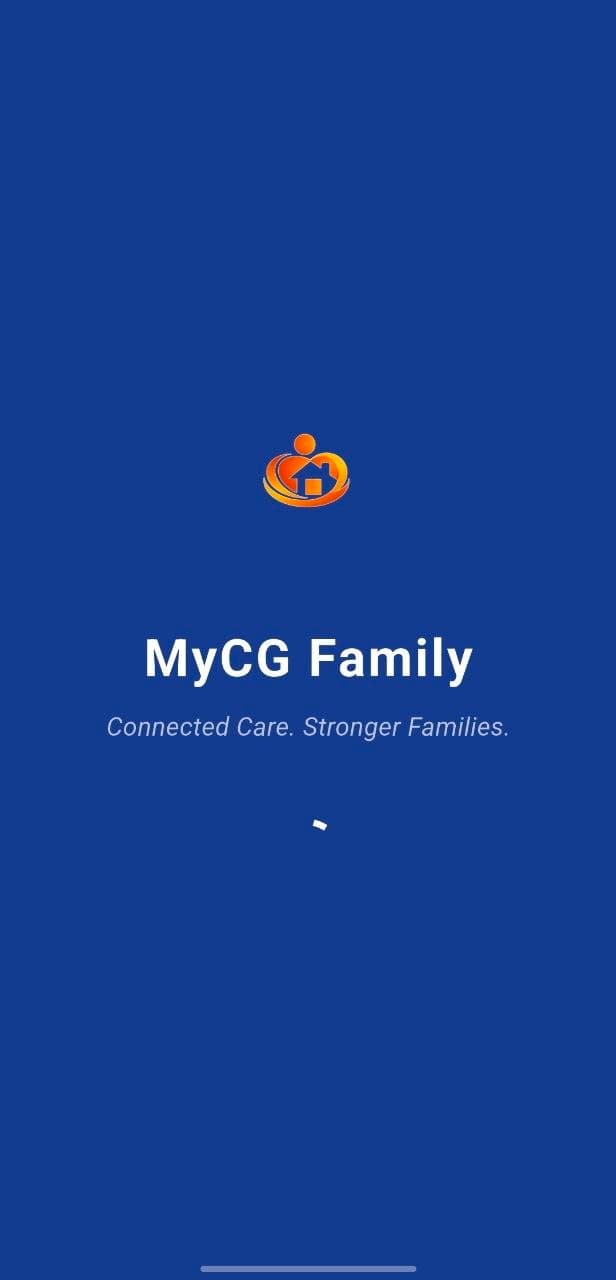
Look for the MyCG name and the familiar orange MyCG care logo before continuing.
4.Tap Install
Select Install and wait while Google Play downloads the app to your device.
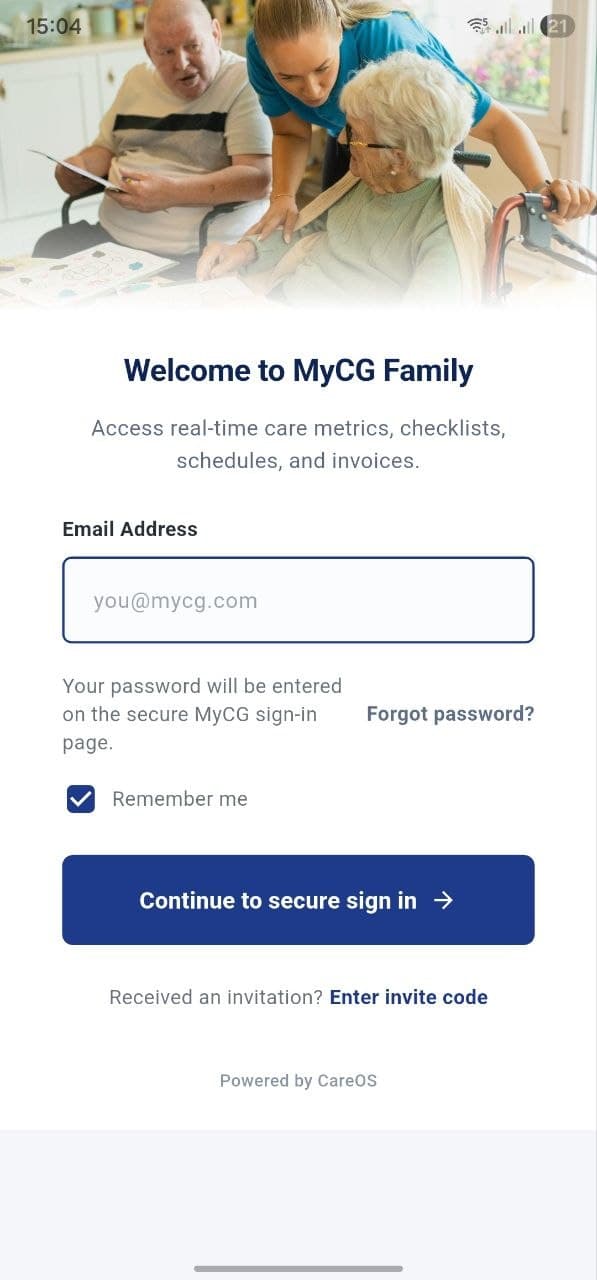
5.Open and sign in
Tap Open, then use your approved family access details or follow the invitation instructions.
1.Open the App Store
Find and open the blue App Store icon on your iPhone or iPad.
2.Use the Search tab
Tap Search and type “MyCG Family App.”
3.Select the correct result
Confirm the MyCG name and orange care logo shown with the app listing.
4.Tap Get
Tap Get, then approve the download using the method requested by your device.
5.Open and sign in
When installation finishes, tap Open and continue with your family account or invitation.
FOR IPHONE & IPAD
Download from the App Store
Use these steps on an iPhone or iPad signed in with the Apple account you normally use for downloads.
Download confirmation
You may need to use Face ID, Touch ID or your Apple Account password.
After installation
Complete your family connection.
Downloading the app is only the first step. Your account still needs to be connected to approved care information.
01
Open your invitation
Use the secure invitation sent to your email or the access instructions provided by MyCG.
02
Sign in securely
Enter the account details associated with your approved family access.
03
Confirm your connection
Check that the correct care recipient is connected before reviewing information.
04
Explore the Family App
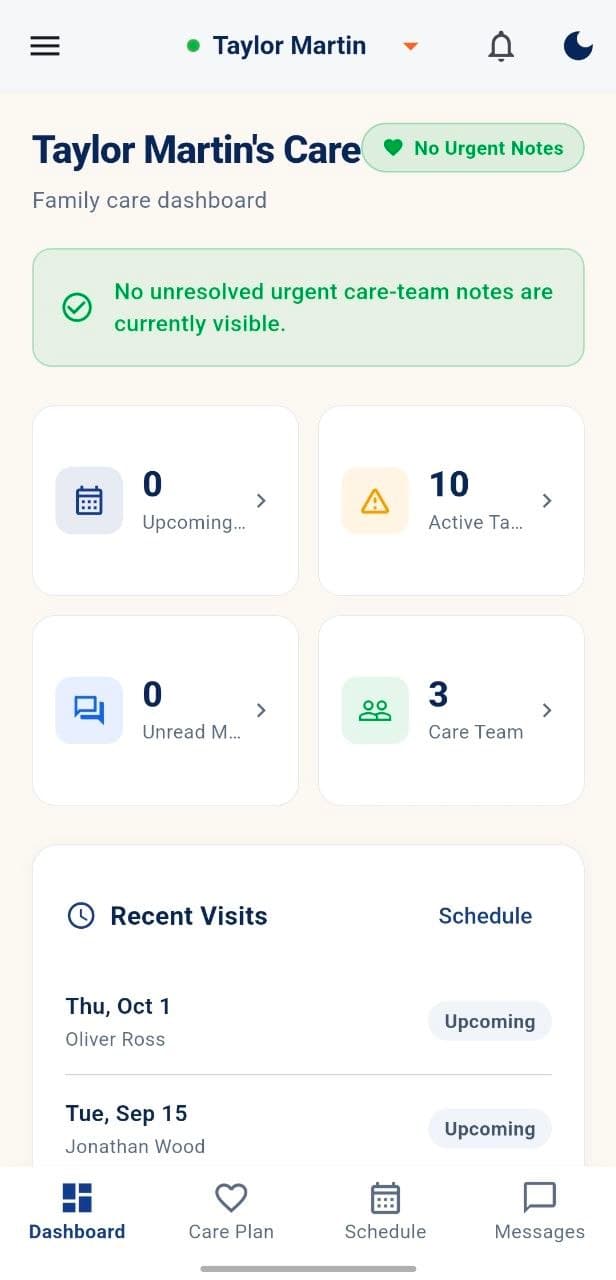
Review the dashboard, care plan, schedule, messages, documents and support options available to you.
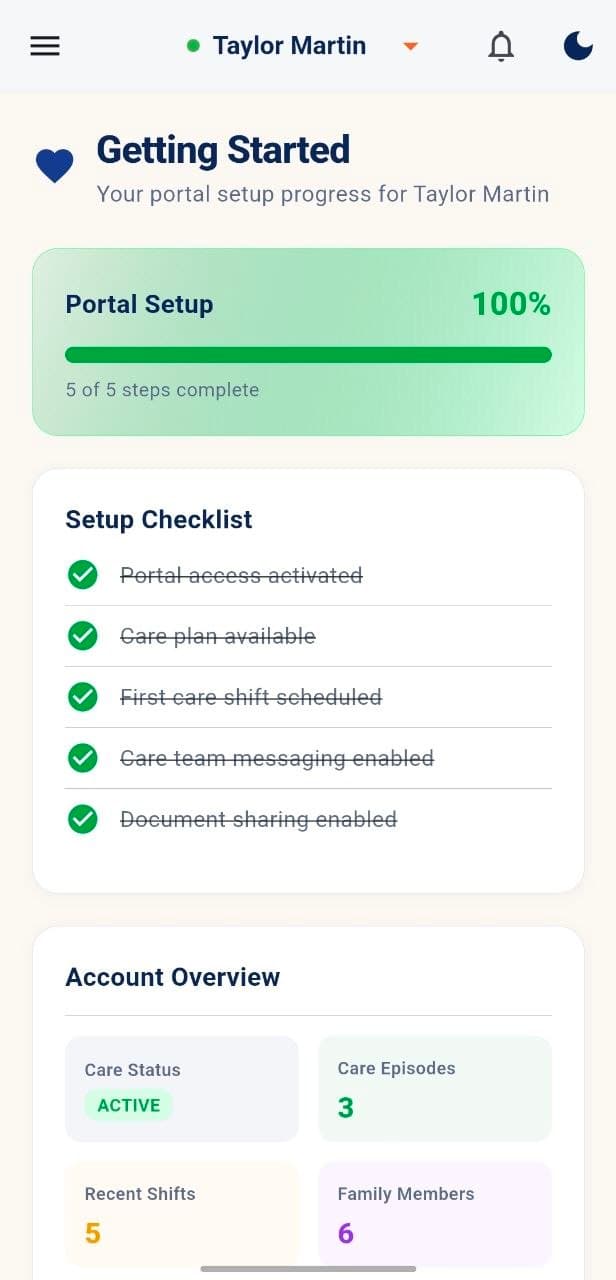
Setup progress
Know when your access is ready.
The Getting Started area helps families see whether portal access, care plans, scheduling, messaging and document sharing have been enabled.
Portal access activated
Care-team messaging enabled
Care plan available
Document sharing enabled
Family portal
Prefer a browser? Use the secure Family Portal.
The Family Portal gives approved family members another way to connect without installing the mobile app. Open the secure portal in a web browser to view the care information available to your account.
admin.mycghomecare.comApproved care updates
Schedules
Documents
Billing
Family messages
Open the portal address
Use a current browser on your phone, tablet or computer.
Enter your family account
Use the email and password connected to your approved access.
Sign in to Family Portal
Continue to the approved information available for your family.
Need help?
If you cannot download or sign in, MyCG Support can guide you.
Keep the email address connected to your family invitation available when requesting help. Never share your password in an ordinary message.