MyCG Caregiver App FAQs
Answers for every shift. Caregiving stays clear.
Practical guidance for access, schedules, clients, communication, credentials, training and support.
Find clear answers about the MyCG Caregiver App, approved caregiver access and the tools that support your workday.
Approved caregiver access
Non-urgent help
Start here
The questions caregivers ask first.
Explore by topic
Browse Caregiver FAQs by category.
FAQ categories
Need help?
Can't find what you're looking for? MyCG Support can help with non-urgent app, account, document and training questions.
Open SupportGetting Started & Account
4 answers
The app is intended for caregivers who have been approved by MyCG and have an active caregiver account.
Use the approved account information connected to your MyCG caregiver profile. Downloading the app does not automatically create caregiver access.
Use the password-recovery option on the sign-in screen. If you still cannot access the account, contact MyCG Support.
Shifts, Schedule & Active Shift
4 answers
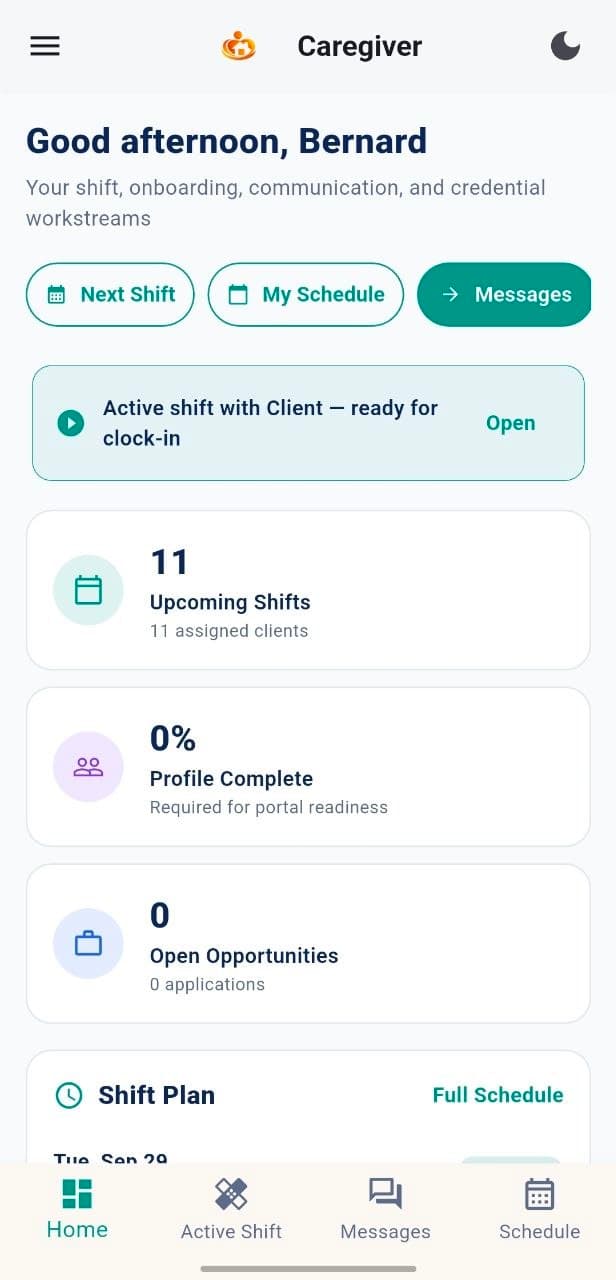
Review the Dashboard, Next Shift and My Schedule areas for approved assignments, dates, times and relevant shift information.
Updated shift information can appear in My Schedule and Notifications. Review the latest details before travelling to an assignment.
Open the approved assignment and follow the active-shift instructions shown in the app.
Contact the assigned care coordinator or use MyCG Support for non-urgent scheduling assistance.
Clients, Messages & Notifications
4 answers
Caregivers can view client details, care guidance and other information connected to their approved assignments and needed to prepare for a shift.
Messages keep work-related conversations in the appropriate care context and help caregivers communicate with the relevant MyCG team.
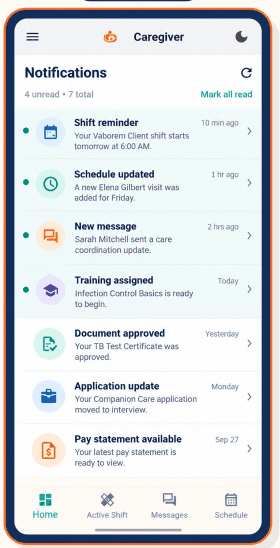
Notifications may include shift reminders, schedule updates, messages, training assignments, document updates, application updates and pay-statement notices.
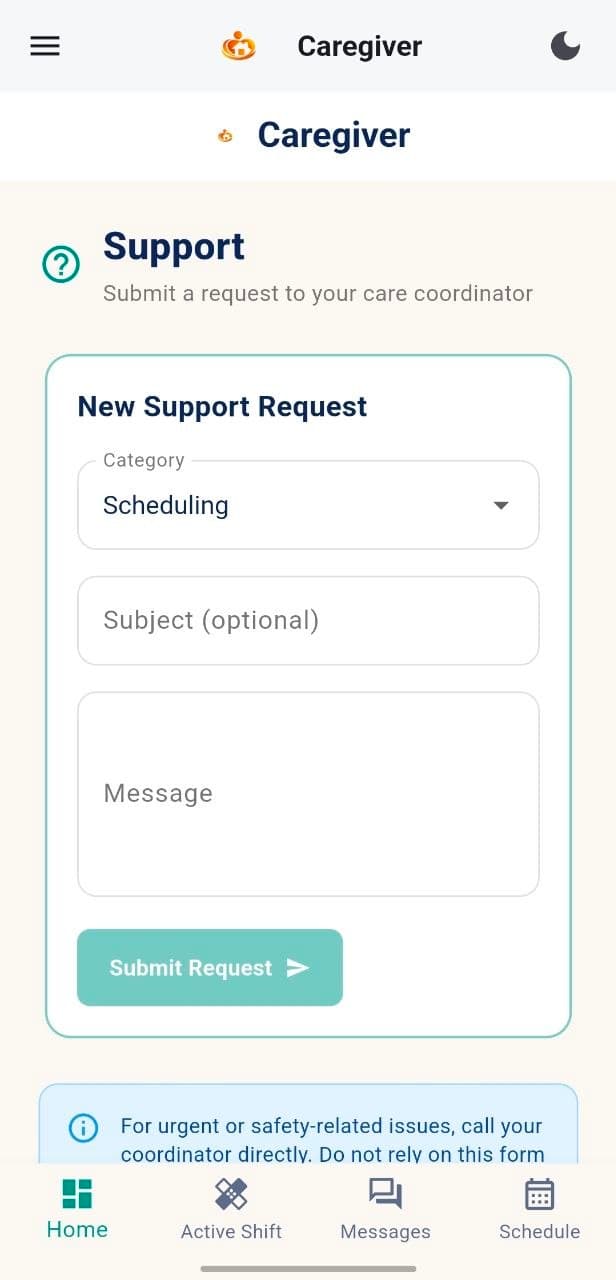
For an urgent or safety concern, contact the care coordinator directly or follow the appropriate emergency process. Do not rely on a non-urgent support form.
Availability, Leave & Applications
4 answers
Use Availability & Preferences to set available days, shift windows and preferred working hours.
Open the leave or time-off area, add the requested dates and details, and submit the request for review.
Use the Availability or Leave area to review the status of requests submitted through your caregiver account.
Eligible caregivers can review available opportunities and track applications from the relevant app section.
Documents, Training & Resources
4 answers
Use Documents to review and upload requested caregiver records or credentials. Follow the file instructions shown in the app.
Open Training & Development to review orientation requirements, assigned modules and readiness tasks.
Training & Development shows assigned learning, completion progress and outstanding modules connected to caregiver readiness.
The Resources area provides access to approved guides, policies, checklists and caregiver reference material.
Pay & Support
4 answers
Pay Summary provides the caregiver's available pay-related information, such as rate references, pay schedule or statement details provided by MyCG.
Open Support, select the appropriate category, add the relevant details and submit the request for non-urgent assistance.
No. Support is intended for non-urgent app, account, document, training or general assistance.
Open Support or My Requests to review available request history and status information.
Quick answer
Notifications keep important work updates easy to find.
Recent alerts can lead caregivers back to a shift, schedule change, message, document, training assignment, application update or pay notice.
Time-stamped
Unread indicators
Work context
Secure and role-aware
What caregivers see depends on approved access.
Information is connected to the caregiver's approved account, role and assigned work.
Approved account
Access with your active MyCG caregiver profile.
Assigned-work context
See information related to your approved assignments.
Role-aware information
View the tools and details appropriate to your caregiver role.
Connected MyCG CareOS updates
Receive relevant updates from the MyCG care ecosystem.
Still have a question?
We're here to help.
Use MyCG Support for non-urgent questions about the app, account, documents, training or general assistance.
For urgent or safety concerns, contact your care coordinator directly or follow the appropriate emergency process. Never share your password in an ordinary message.
Ready to use your caregiver tools?
Download the MyCG Caregiver App and sign in with your approved caregiver account.