MyCG Family App FAQs
Questions answered. Care stays clear.
Helpful guidance for access, care updates, communication and family support.
Find clear answers about the MyCG Family App, secure Family Portal and the tools available to approved family members.
Secure family access
Non-urgent help
Start here
The questions families ask first.
Explore by topic
Browse FAQs by category.
FAQ categories
Need help?
Can't find what you're looking for? Visit MyCG Support for non-urgent app, portal or account help.
Open SupportGetting Started & Access
4 answers
Family members whose access has been approved and connected to a care recipient can sign in. What each person can view or do depends on their role and permissions.
Access normally begins through an approved invitation or account setup connected to the family member and care recipient.
Yes. Approved family members can use the secure Family Portal in a current web browser when they prefer not to use the mobile app.
Download, Sign-In & Setup
4 answers
Use Google Play on an Android phone or tablet, or the Apple App Store on an iPhone or iPad. Search for MyCG Family App and confirm the MyCG name and orange care logo.
Keep your family invitation or approved account details nearby and make sure your device has an internet connection.
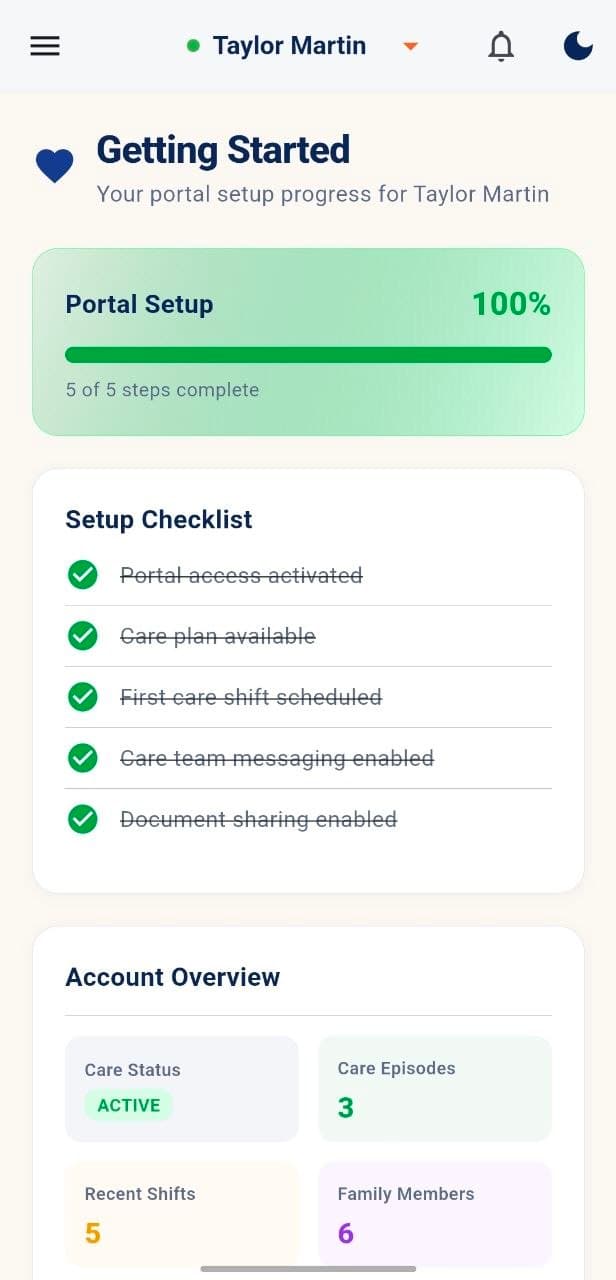
Getting Started shows portal setup progress, a five-step checklist for access, care plan, first shift, messaging and document sharing, plus an account overview.
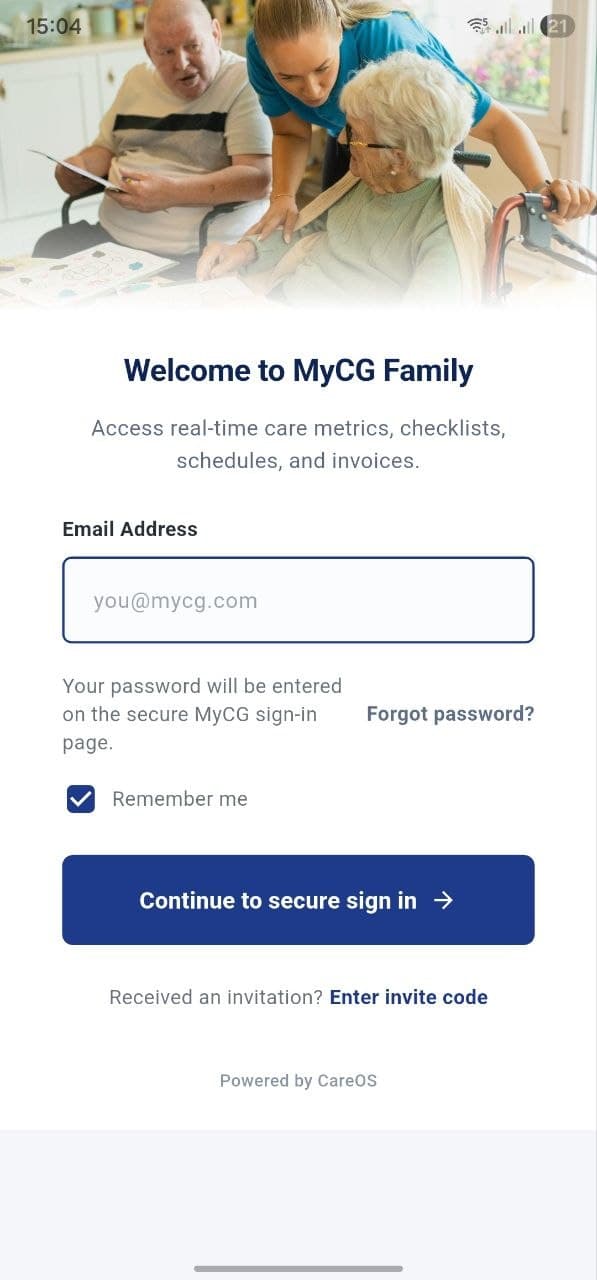
Check that you are using the email connected to your approved family access. Use MyCG Support for non-urgent account help and never share your password in an ordinary message.
Dashboard, Care Plan & Schedule
4 answers
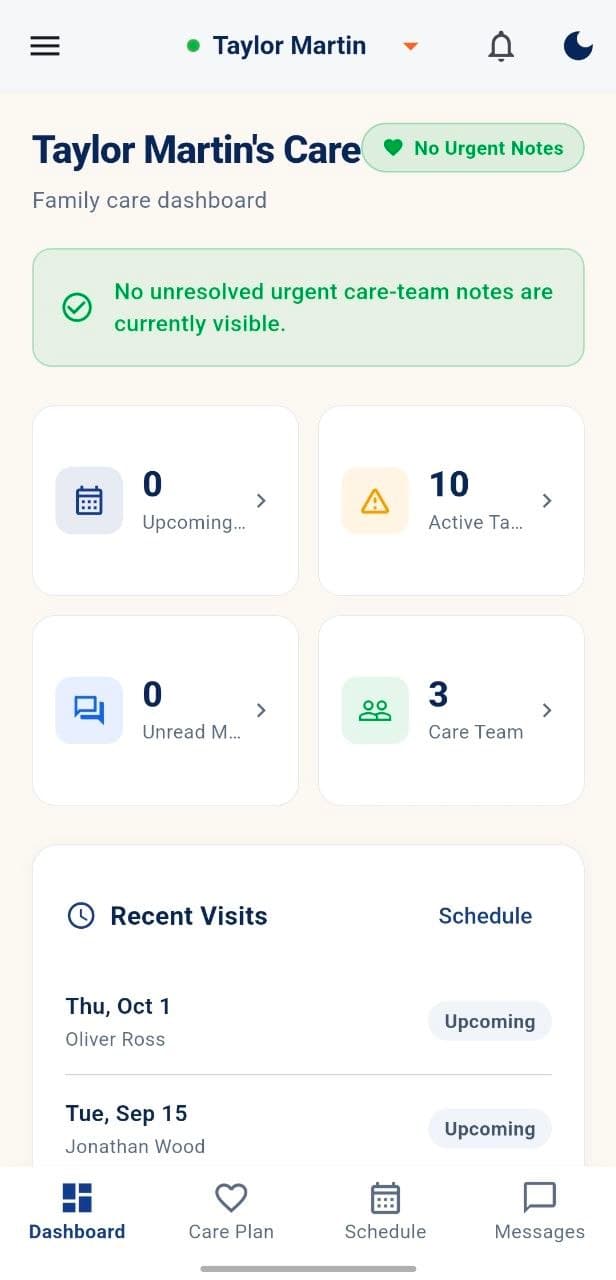
The dashboard keeps the selected care recipient in context and can show care status, upcoming care, active tasks, unread messages, care-team access, recent visits and support alerts.
The Family App is designed to help families review approved care information. Contact the care team if you have a question or believe a care-plan detail needs attention.
The documented view includes Today’s Notes, Safety Notes, Timeline Events, Wellness Checks, client overview, care needs, written-plan status, observation areas and the care timeline.
You can review summary cards and filtered shift records with date, scheduled time, assigned caregiver and visible status.
Messages, Meetings & Notifications
4 answers
Messages provides All, Unread and Archived views. Each thread can show the sender, subject, timestamp and unread count before you open the conversation.
Meeting records can show the title, date, time, location and status such as Confirmed, Scheduled or Pending. Details or a join option appear when available.
Notifications can include care-plan updates, shifts, medication reminders, messages, meetings, documents and billing. Recent items show timestamps and unread indicators.
No. Messages keeps care-team conversations organized, while Family Meetings lists scheduled care conferences and family check-ins.
Concerns & Support
5 answers
Use Concerns for a care-related issue connected to the selected care recipient. Use Support for non-urgent help with the app, portal or account. Urgent situations should follow MyCG’s urgent-help or emergency guidance.
A concern is submitted in the selected care recipient’s context for review by the appropriate MyCG care-coordination or management team. Exact routing and notifications depend on the organization’s configured workflow.
The form includes a title, details and priority. Existing records can show category, priority, status and raised date.
No. The documented Support form is for non-urgent inquiries. Use the urgent-help guidance shown in the app or the appropriate emergency channel when immediate help is needed.
Yes. Support History can show a request reference, category and status together with separate urgent-help guidance.
Documents, Family Access & Preferences
5 answers
The documented upload flow accepts PDF, PNG, JPG and DOCX files up to 25 MB. Add a document title and optional notes before uploading.
Invitation and access-management actions depend on the signed-in user’s role and approved permissions.
The documented permissions include billing, documents, messaging, inviting family, approving services, viewing the schedule and receiving alerts.
Authorized users can review configured contacts and use the Revoke action for a selected contact, subject to the app’s confirmation and access rules.
Profile preferences include Email Alerts, SMS Alerts and Portal Notifications. The Profile area also includes Sign Out and protected account-deletion controls.
Quick answer
Notifications keep important updates easier to find.
Recent alerts can lead families back to the related care-plan update, shift, message, meeting, document or billing item.
Timestamped
Unread indicators
Recipient context
Secure and personalized
What you see depends on approved family access.
Family App information stays connected to the selected care recipient, signed-in role and configured permissions.
Recipient context
Information is shown for the selected care recipient.
Role-based permissions
Each person can see and do things based on their role.
Configured family contacts
Access is managed through approved family connections.
Still have a question?
Still have a question?
Use MyCG Support for non-urgent app, portal or account help. Keep the email connected to your family access available when requesting assistance.
Never share your password in an ordinary message.
Ready to connect with the Family App?
Follow the download guide or use the secure Family Portal with your approved account.